
 CZ
CZ SK
SK HU
HU AT
AT DE
DE ES
ES SI
SI HR
HR
Nothing in the basket.

- Search
-
Login

-
0
Comparison
Add products to compare, then they will appear here and you can compare parameters.
-
0
0 €
Blog
Until June 10th, 2017, Angenieux offers several discounted lens and accessories bundles, including:
1x Optimo Anamorphic (30-72 or 56-152)
+
1x Special Uncoated Front Element
= 55.000 EUR 59.949 EUR1x Optimo Style 16-40
+
1x Optimo Style 30-76
= 27.900 EUR 29.998 EUR1x Optimo Style 16-40 or 30-76
+
1x Optimo Style 48-130
= 34.950 EUR 35.998 EUR
1x Optimo Style 16-40
+
1x Optimo Style 30-76
+
1x Optimo Style 48-130
= 47.999 EUR 50.997 EUR
1x Optimo Style 16-40
+
1x Optimo Style 30-76
+
1x Optimo Style 25-250
+
1x Optimo Style 48-130
= 81.300 EUR 85.996 EUR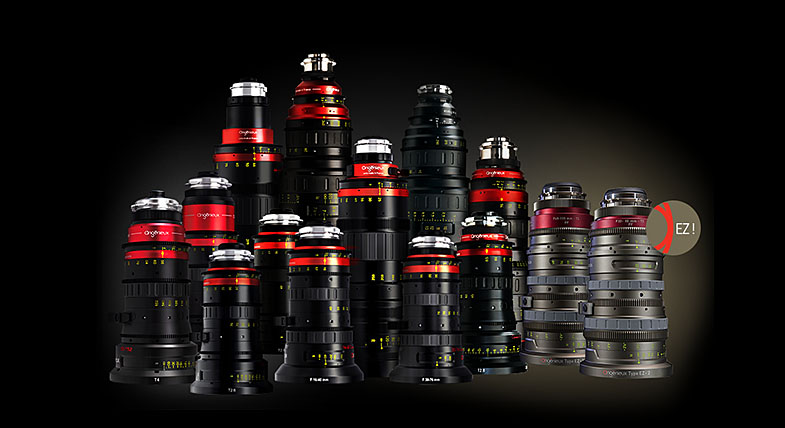
Date: 11. 05. 2017,
Category: News
FULL ARTICLE
The second beta update for DaVinci Resolve and DaVinci Resolve Studio 14 provides improved performance and fixes. Download it at blackmagicdesign.com.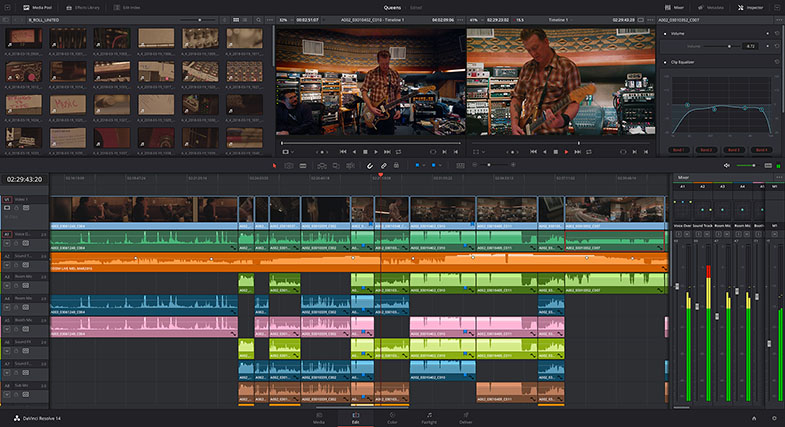
Date: 10. 05. 2017,
Category: News
FULL ARTICLE
The NVS-30 is a small and portable video streaming encoder and recorder. This device is designed specifically for simultaneous encoded video streaming and high quality video recording. The NVS-30 accepts any HDMI input source (such as camera or switcher) and streams the input video directly for broadcast to YouTube, Facebook, and other live streaming platforms.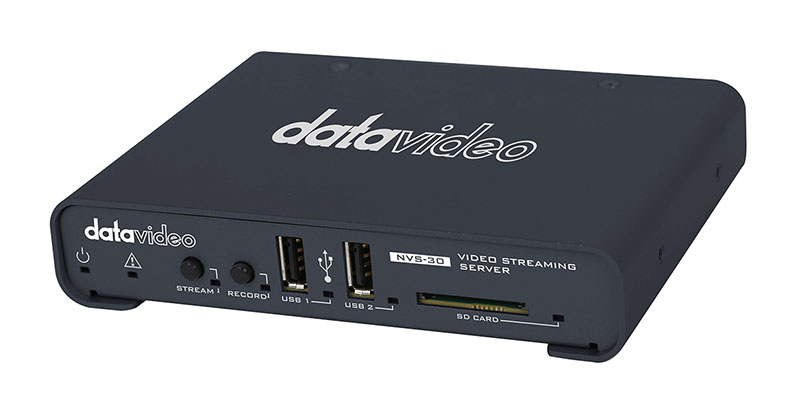
Date: 10. 05. 2017,
Category: News
FULL ARTICLE
Press Release
Blackmagic Design announced that Axis Animation used Fusion Studio for its work on the game cinematic and cutscenes for the latest real time strategy game from Relic Entertainment and SEGA Europe, Warhammer® 40,000®: Dawn of War III®.
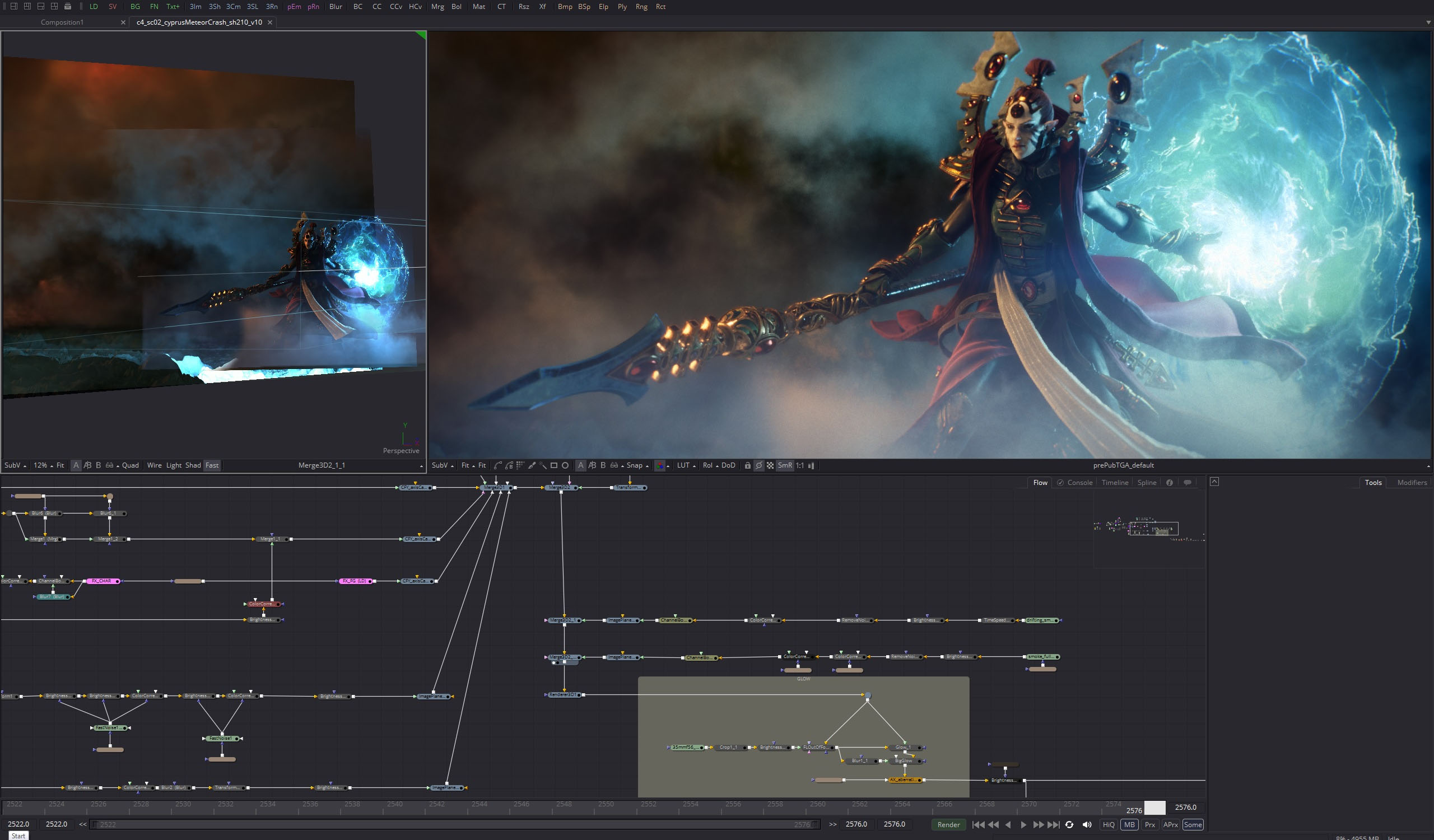
Axis Animation has previously worked on AAA SEGA titles such as “Aliens: Colonial Marines” and “Alien: Isolation.” For “Dawn of War III” however, the team adopted a brand new approach to its VFX pipeline, allowing the studio to streamline its 3D characters and environments into a 2.5D compositing setup in Fusion Studio.
“It was the work of Polish surrealist painter Zdzisław Beksiński that was the essential ingredient in our pitch to Relic. We worked with the team at Relic to strike a careful balance between our intended aesthetic with Beksiński's ethereal imagery and the established WH40K world created by IP holders Games Workshop®,” explains Lead LRC artist on the project, John Barclay.
Axis produced the award-winning trailer for “Dawn of War III” which received great responses from fans and critics alike. With the success of the trailer, developers Relic Entertainment wanted to take the same art direction into the cutscenes.
To do this, the Axis team assembled their scenes within the standard studio pipeline but automated the process of converting the 3D scene into the multitude of image planes required for their 2.5D comps. “This helped us enormously, especially for the cutscenes, which featured limited camera movement,” Barclay reveals. “It was incredible that we had the flexibility to use effects like volumetric fog and insert them into the same scene as characters and environments built from 2.5D cards. It also meant our lighting artists could work on the scene as though it were any other 3D set.”

Brought into Fusion using a custom Python and Lua script to ensure all the data was positioned correctly, the cards meant that every artist at Axis could automatically render their character from Houdini and import it as a projection into Fusion. An alembic export was then used to bring in the camera positioning from Maya.
“Using image planes in Fusion allowed us some significantly reduced render times and also greater flexibility with more creative iteration over the whole show. The workflow allowed artists familiar with our standard pipeline to create something a little more unusual,” Barclay concludes. “Fusion is key to helping us solve both creative and logistical challenges. It was an essential part of our toolbox on Dawn of War III.”
Press Photography
Product photos of all Blackmagic Design products, are available at www.blackmagicdesign.com/press/images.
About Blackmagic Design
Blackmagic Design creates the world’s highest quality video editing products, digital film cameras, color correctors, video converters, video monitoring, routers, live production switchers, disk recorders, waveform monitors and real time film scanners for the feature film, post production and television broadcast industries. Blackmagic Design’s DeckLink capture cards launched a revolution in quality and affordability in post production, while the company’s Emmy™ award winning DaVinci color correction products have dominated the television and film industry since 1984. Blackmagic Design continues ground breaking innovations including 6G-SDI and 12G-SDI products and stereoscopic 3D and Ultra HD workflows. Founded by world leading post production editors and engineers, Blackmagic Design has offices in the USA, UK, Japan, Singapore and Australia. For more information, please go to www.blackmagicdesign.com.
Date: 09. 05. 2017,
Category: Syntex Workshop
FULL ARTICLE
Designed to fit with the profile of a DSMC2 camera body, the REDVOLT-V is the ideal battery for the filmmaker on the go and for use in gimbal and drone configurations. This 43Wh rechargeable lithium-ion battery provides more power than the original REDVOLT® and weighs less than 1 lb. Compatible with any RED V-Lock battery expander or module (V-Lock Battery Module, V-Lock I/O Expander.). Requires: DSMC2 V-Lock I/O Expander. Compatibility: WEAPON 8K S35, WEAPON 6K, EPIC-W, SCARLET-W, RAVEN, EPIC/SCARLET DRAGON, EPIC/SCARLET M-X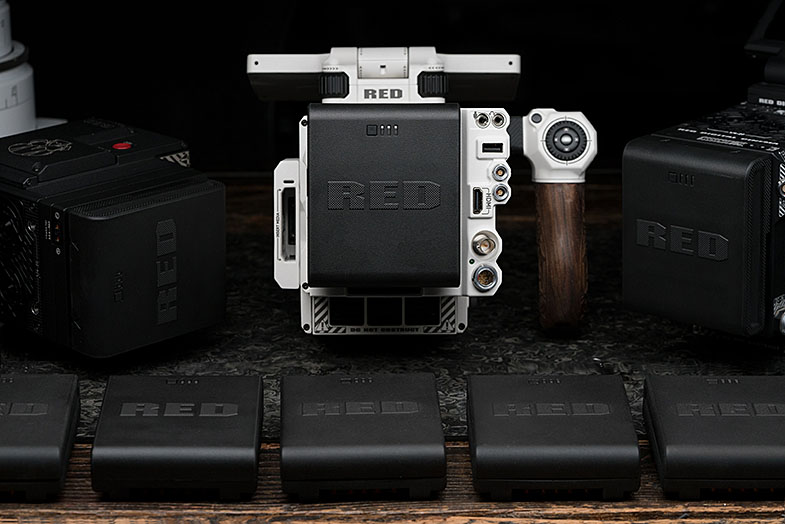
Date: 05. 05. 2017,
Category: News
FULL ARTICLE