
 CZ
CZ SK
SK HU
HU AT
AT DE
DE ES
ES SI
SI HR
HR
Nothing in the basket.

- Search
-
Login

-
0
Comparison
Add products to compare, then they will appear here and you can compare parameters.
-
0
0 €
News
Tutorials in the new EDIUS Basics series describe basic functionality of the Grass Valley EDIUS Pro 8 and Workgroup NLE applications.
Date: 28. 11. 2017,
Category: News
FULL ARTICLE
The new software update for DaVinci Resolve Studio fixes a bug when detecting Blackmagic Desktop Video hardware, improves monitoring selection of PsF formats, provides better license dongle detection on MacOS High Sierra. In addition, this update has many general performance and stability improvements, and is recommended for all DaVinci Resolve 14 Studio users.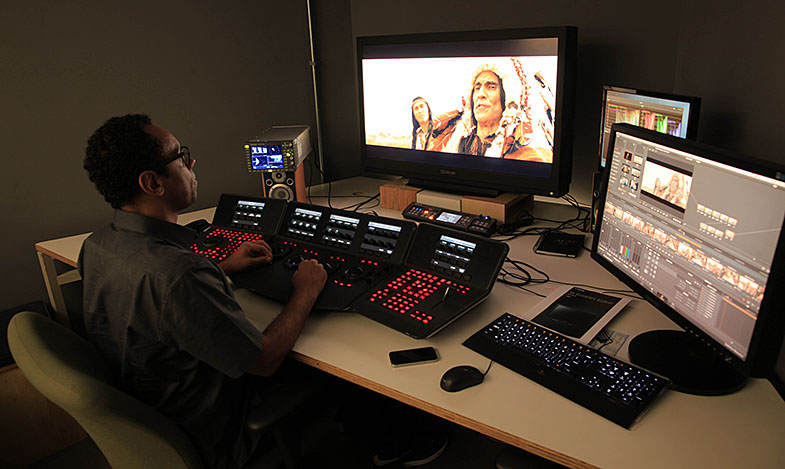
Date: 27. 11. 2017,
Category: News
FULL ARTICLE
Blackmagic Design released two new updates: Blackmagic Camera 4.7.1 Update, and Ultimatte 1.1 Update, respectively. The 4.7.1 Camera Update fixes an occasional bug for Blackmagic Micro Cinema Camera which causes display errors in the data from the sensor, as well as fixes a bug for URSA Mini when updating to the latest software (recommended for all URSA Mini cameras). The 1.1 update for Ultimatte adds 3G-SDI Level A support to Ultimatte 12 and provides minor bug fixes. In order to work with Level A devices, you must also download and install the new Smart Remote 1.2 update. Download any of the updates here.
What's new in Blackmagic Camera Setup 4.7.1
Micro Cinema Camera
Fixed a bug where there could be display errors in the data from the sensor in rare situations.
URSA Mini 4K and URSA Mini 4.6K
Fixed an issue where URSA Mini is updated incorrectly.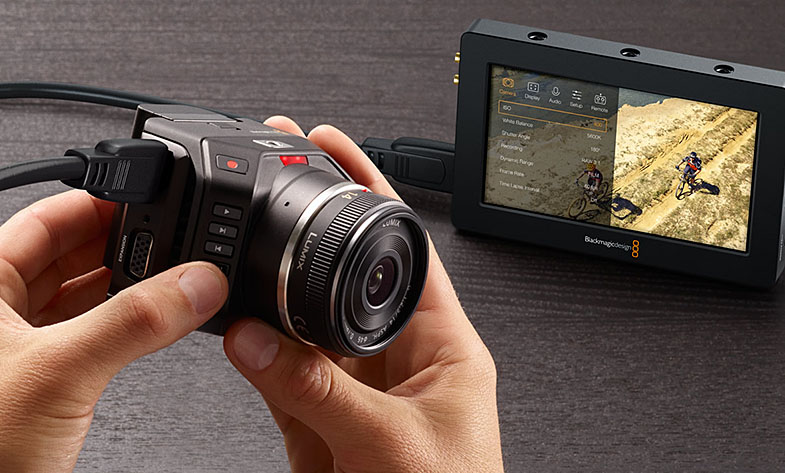
Date: 22. 11. 2017,
Category: News
FULL ARTICLE
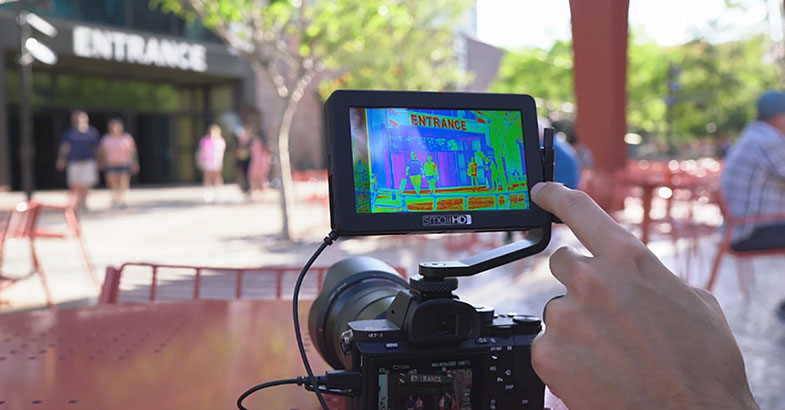
The SmallHD OS3 update has something to offer for every filmmaker! This free downloadable update comes with a host of new features for all current SmallHD on-camera and production monitors (FOCUS, 500 Series, 700 Series, UltraBrights, 1300 Series, 1700 Series, 2400 Series, and 3200 Series):
Auto-Calibration
Using the official SmallHD color probe, auto-calibration can be initiated simply by attaching the probe to the monitor via USB and letting the monitor do its thing. Watch our Auto-Calibration How-To Video (this feature is not available for the 701 and 702 Lite monitors)
Customizeable False Color (Exposure Assist)
Creating a visual, data-driven exposure tool has never been this customizable. Create up to 10 different IRE ranges, with custom color assignments, and start using False Color exactly how you want to.
Spot Metering in LUMA Waveform
Adding to SmallHD’s customizable Waveform tool is the ability to highlight and monitor critical areas of your image. Using a spot meter box with an adjustable size, the targeted area’s data becomes easy to see on the Waveform.
Image Gallery Viewer
Screen captures and images loaded onto SmallHD monitors via SD card can now be accessed in an image gallery. Quickly glance at dozens of frame grabs from a day of shooting, and do so without being connected to your camera.
Adjustable White Point
We’ve added support for the following white points for the desired input space and monitor calibration: D65, DCI-P3, 3000K, 5000K, 5600K, 9300K.
SmallHD FOCUS now accepts 4K30
The SmallHD FOCUS monitor will now accept video signals up to 4K30 via HDMI. Shooters will see an improvement in image quality while shooting in 4K and using the Zoom feature to magnify their image.
How to update a SmallHD Monitor
- 1. Download the latest Firmware Package (3.1.2)
- 2. Extract the .zip file and drag and drop the .bin file onto an SD card (must be 16gb or smaller – FAT or FAT32 for Windows, MS-DOS (FAT) for Mac)
- 3. Remove SD Card from computer or card reader attached to computer
- 4. Insert SD card into your SmallHD monitor
- 5. Turn on the monitor and navigate to the monitor’s Settings Menu
- 6. Scroll to the bottom of the settings list to the “Firmware” Item, located in the “System” section. Your Firmware section should display “Upgrade To Firmware 3.1.2.” Select this option and follow the on-screen instructions.
- 7. Once the firmware is installed and the on-screen prompts tell you to reboot your monitor – hold down the power button for at least 5 seconds and then release.
- 8. Press the power button again to begin operating your monitor with the new firmware installed.
Date: 22. 11. 2017,
Category: News
FULL ARTICLE
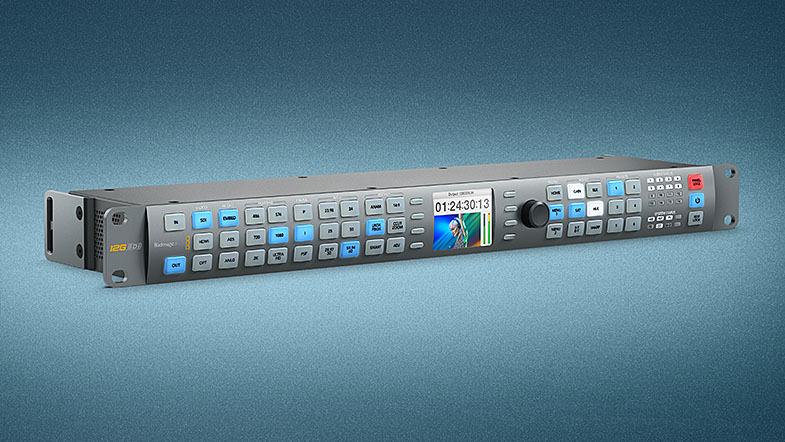
This update includes new features for all Blackmagic Design's Teranex standards converters such as updated input information on the LCD, remote lock and panel locking via the Teranex Setup application. New features for Teranex AV include options for low latency frame rate conversions, horizontal motion on test patterns, HDMI YUV/RGB output selection, HDMI output conversions for PsF and 2K formats, variable transition times between input, black, still and freeze frames, and more. Teranex AV and Teranex Express updated features include audio meters, 3G-SDI level indication on the LCD and test tone levels set to -20dB(FS).
What's new in Teranex Utility 6.1
Updates for the Teranex AV including:
- Reduced latency for frame rate conversions in Lowest Latency mode
- Horizontal motion for Test Pattern Generator
- Variable transition times for Output Options
- Capture a Still from Freeze
- Transfer of Stills to/from computer via Setup Utility
- HDMI outputs progressive for PsF output formats
- HDMI Output Color Space selection
- Improved accuracy and graphic for audio meters (Express as well)
Updates across all Teranex 1RU rack converters include:
- Enabled REM lock button on Front Panel
- Panel Lock via the Setup Utility Application
Date: 21. 11. 2017,
Category: News
FULL ARTICLE