
 CZ
CZ SK
SK HU
HU AT
AT DE
DE ES
ES SI
SI HR
HR
Nothing in the basket.

- Search
-
Login

-
0
Comparison
Add products to compare, then they will appear here and you can compare parameters.
-
0
0 €
Panasonic AW-SF100 Auto Tracking Software FAQ
Panasonic's AW-SF100 software offers the system that assists in tracking targets using Panasonic PZ cameras AW-UE70, AW-HE70, and AW-HE130 (as of March. 2016). By template matching and motion detection, the tracking target is automatically detected from the video that the integrated camera transmits. And the camera is controlled according to the movement of the target.
What is the AW-SF100 Auto Tracking Software key?
The AW-SF100G is a software license for Panasonic auto tracking software. The following Panasonic remote cameras are compatible with the auto tracking feature as of March 2016:
- AW-UE70 series: 4K/HDTV integrated camera
- AW-HE40: HDTV integrated camera
- AW-HE130 series: HDTV integrated camera
Advantage of Panasonic auto tracking system: The use of high-performance "motion detection" system which is the combination of the multiple detection algorithm makes it possible to track the subject with minimum tracking error regardless of where the person facing, even in situations such as lecture where the lecturer is writing on a blackboard showing his/her back to the camera. In addition, since this function does detection/tracking with streaming video from the camera, it is not necessary to have the video capture board needed for capture on a PC. This reduces the processing load for video capture, thereby eliminating the need for a high-performance PC.
Is there any client software available from Panasonic?
Yes, following two versions are available as well as a 30-day free trial. To activate the software, please purchase AW-SF100G software keycode. Visit following website for more details and download http://pro-av.panasonic.net/en/products/aw-sf100g/index.html
- Standalone version runs on Windows OS
- Web application version runs in the Google chrome for Windows web browser (even on mobile devices), requires an HTTP server separately.
How can I obtain Panasonic Auto Tracking Software?
You can download the software (30-day trial) from Panasonic website at http://pro-av.panasonic.net/en/products/aw-sf100g/index.html. And it can be activated with AW-SF100G software keycode option.
Do all Panasonic remote cameras support the auto tracking feature?
Following products are capable of the feature as of March 2016.
- AW-UE70 series : 4K/HDTV integrated camera
- AW-HE40 : HDTV integrated camera
- AW-HE130 series : HDTV integrated camera
I cannot activate Panasonic Auto Tracking Software
Internet connection is required to perform activation. Please double check if your computer is connected to internet.
Do we need to arrange the AW-SF100G keycode for each client? Or each camera?
Please arrange the AW-SF100G keycode for a number of PCs, which is to run client software.
Can I run both standalone and web versions on a single computer.
It is no problem to do.
What operating systems can run the auto tracking software?
– Windows 7 Professional(SP1), Ultimate(SP1) 32bit and 64bit
– Windows 8.1 32bit and 64bit
– Windows 10 32bit and 64bit
What is the minimum requirement to run the auto tracking software?
CPU: Intel Core i5, 2.6GHz or higher
RAM: 4GB or larger
Display resolution: 1920x1080 or higher
Can I connect a single camera to multiple client PCs simultaneously?
A single camera can connect to a single PC only.
Is the auto tracking performance perfect?
Tracking may unexpectedly go off-track due to several reasons. Panasonic recommends you to evaluate if its performance meets your requirements in advance. The software comes with a 30-day trial.
What happens when the system has lost a subject?
The system goes to idle mode until any subjects come into a frame again. There is a menu setting to let the camera be home positioned when certain time has elapsed with no subjects.
What will be the typical causes that can make tracking go off-track?
Typical causes:
- Multiple persons are in the frame.
- Another person cuts across in front of a person currently tracking.
Is the system featuring a facial recognitiontechnology?
Facial recognition technology is not in use. The system is realized by motion detection and a pattern matching technology.
Is personal recognition possible?
Unfortunately no. Since the system is not featuring facial recognition, personal recognition is not available.
Can the system start tracking automatically? Or do we always need to specify a target and start tracking manually?
Auto tracking start feature is available. The system starts tracking automatically when a person comes into the frame.
Can we adjust camera-related settings depending on the situation of installation?
Yes, typical settings of the camera (example: Pan/tilt speed, zoom limit etc.) can be adjusted in the software.
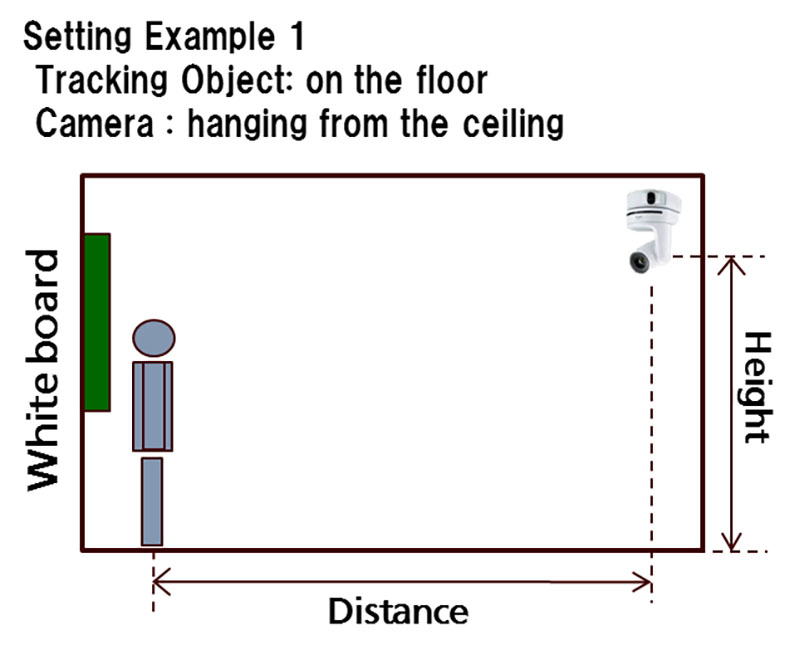
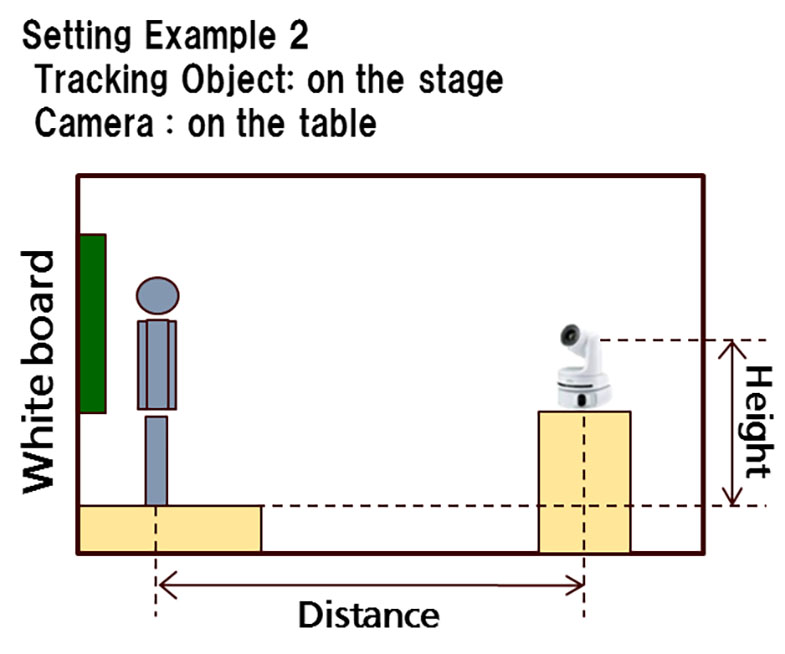
In the camera setting (Setting > Camera), there are „Height” and „Distance” settings. What are they?
Height and Distance information are necessary to calculate a basis of Angle presets (Upper body, Full body, Full in Setting > PTZ Ctrl > Angle setting). Height: Height from the foot of the tracking object to the camera lens position (Absolute value). Distance: Distance from the foot of the tracking object to the camera lens position.
I heard the system can link with the AW-RP50 pr RP120 remote panel. What can we do when linked with them?
Following operations can be performed directly from AW-RP50 or AW-RP120 remote panels when linked.
- Selecting a camera to be controlled
- Turning ON/OFF tracking operation of a camera.
Supported versions:
For AW-RP50 series, ver.3.21 or higher
For AW-RP120 series, ver.2.31 or higher
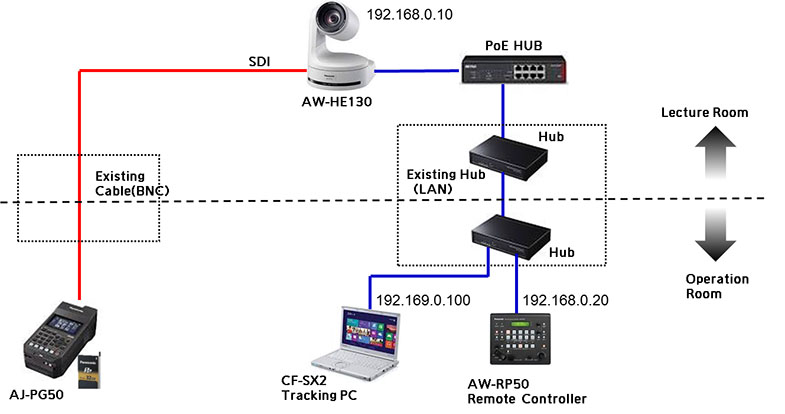
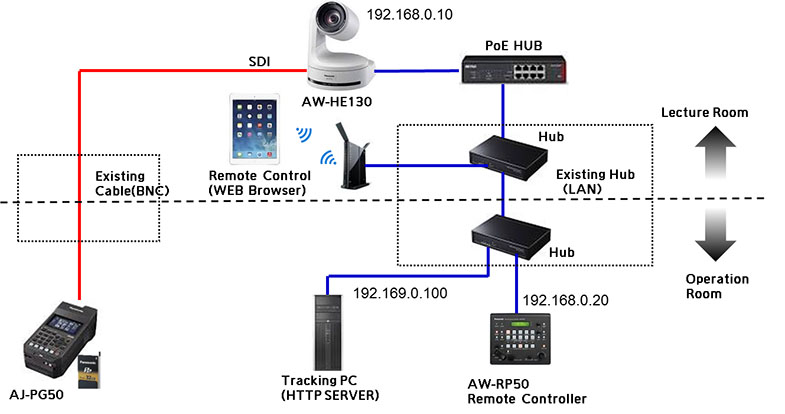
System example (standalone and web applications).
Standalone:
Web application:
What is a suitable distance between a camera and a subject?
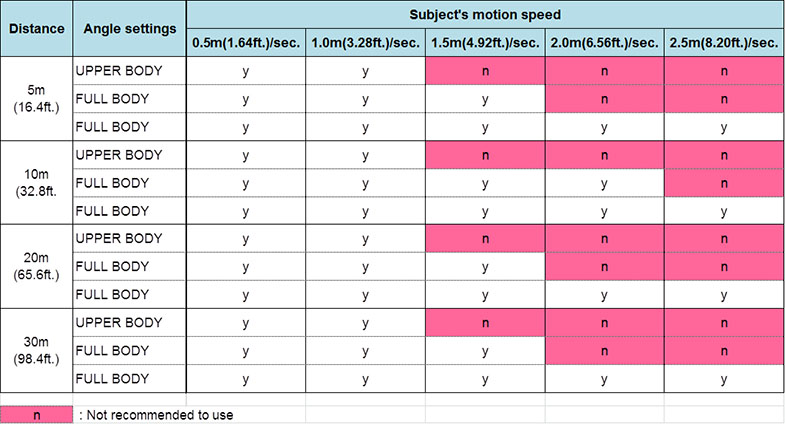
Recommended distance between camera and subject is 5 to 30 meter (16.4 to 98.4 ft.). Tracking accuracy will become lower when its distance is shorter. When you use angle presets, please also refer following table.
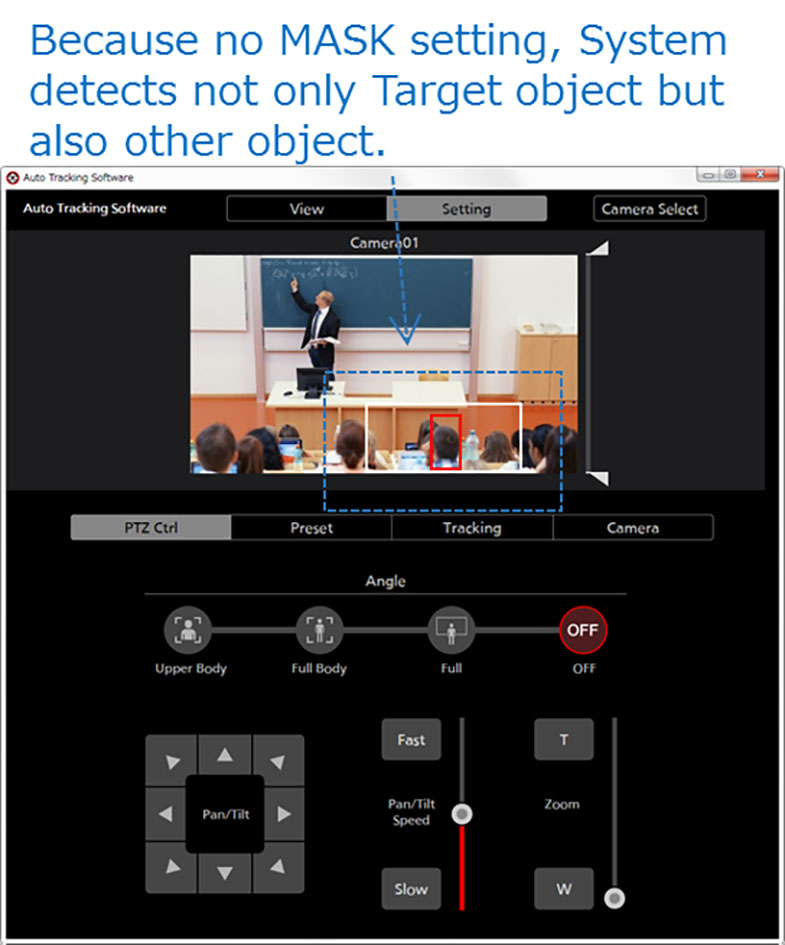
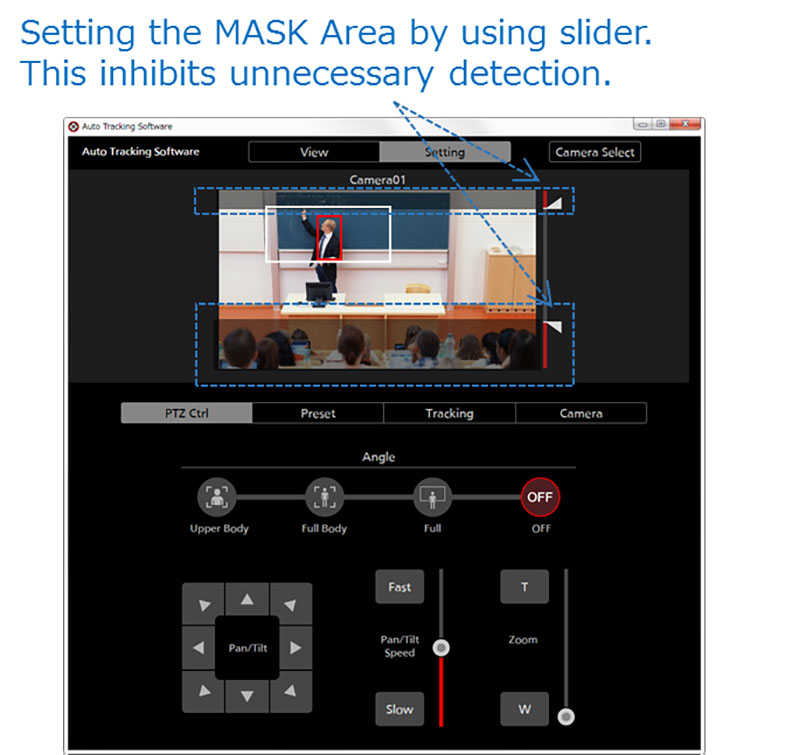
I want to make a detection exclusion area in the picture frame to avoid tracking of another person unexpectedly. For example, in a school, camera should only track a teacher but sometimes the camera changes to students who are sitting on front of the teacher.
You can mask upper and lower part of the frame as the exclusion area:
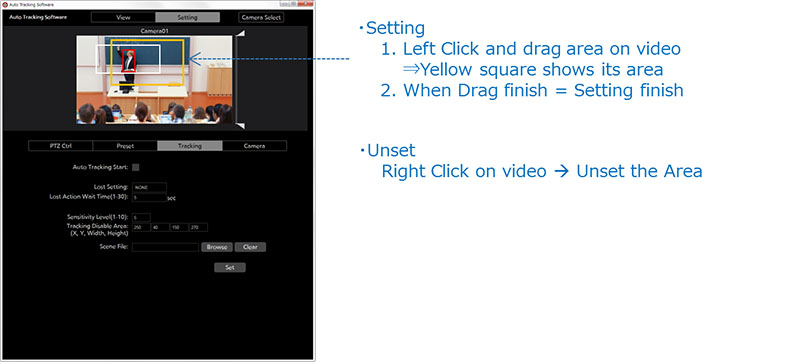
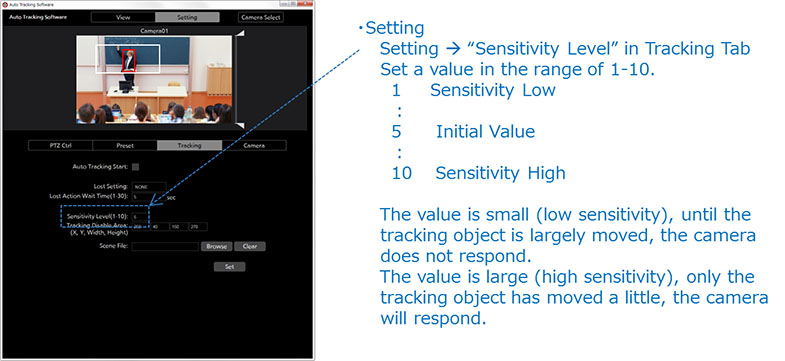
Camera's reaction to subject's motion is a bit too sensitive. Is it possible to define a no reaction area? I do not want the camera to chase a subject so sensitively.
Yes, this kind of area (Tracking Disable Area) and follow-up speed (Sensitivity) can be set. Tracking Disable Area: Rectangular no reaction area can be set on the image. The camera stops chasing a subject until the subject goes out of the user-defined area. Sensitivity level: Follow-up speed can be set in 10-steps. When increase a number, sensitivity level becomes higher, and the camera reacts subject's motion so rapidly.
The camera lost target.
The following are rather normal operation. Please select again original target object manually.
1. During the detection/tracking, sometime tracking shifts to different object which across the target object with movement (Other person, Hand, etc)
2. During the detection/tracking, sometime tracking shifts to different object (No movement, Like as Edge of white board etc).
3. During the detection/tracking, sometime tracking shifts to different object (To projector screen, other video etc)
4. When target object does not move and other object moves in same camera angle, templates moves to moving object automatically.
5. When AUTO DETECT=ON, sometime template goes to arm or leg
6. When multiple object (Person) exists in same camera angle, sometime templates does not goes to target object
There are some functions that do not operate within the Web browser on a tablet?
The following functions are not available within the Web browser application:
- Tracking Disable Area: Cannot set its area by dragging
- Scene File setting
It is possible that some other functions also cannot operate from web browser, depending on type of web browser.
Date: 09. 03. 2016,
Category: News